This article treats several kinds of validation. Validation is so important in data analyses. It might be that validation is the first topic that a data science beginner should learn.
Low-code/Auto machine learning tools have been recently a hot topic, so it is worth to paid attention to. In this article, Pycaret and H2O Automl, one of the famous Low-code machine learning tools, are introduced.
Streamlit makes it easier and faster to make your python script a web app. This means we can publish our codes as a web app!
In this post, we will see how to deploy our linear-regression-analysis code on a web app. In a web app format, we can try it in interactive. The origin of the linear regression analysis in this post is introduced in another post.
If the docker is available, you can use the Dockerfile in the following post, making it easy to prepare an environment for streamlit. Then, you can try the code in this post immediately.
The web app will be opened by the following command in the web browser.
$ streamlit run Boston_House_Prices.py
Import libraries
import streamlit as st
import numpy as np
import pandas as pd
import matplotlib.pyplot as plt
import seaborn as sns
sns.set()
from sklearn.datasets import load_boston
from sklearn import preprocessing
from sklearn.model_selection import train_test_split
from sklearn.linear_model import LinearRegression
from sklearn.metrics import r2_score
Title
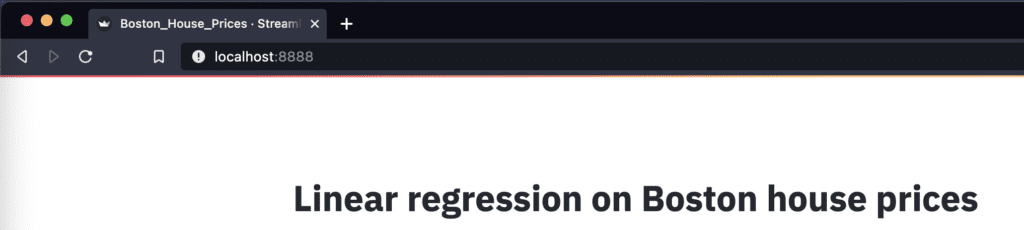
You can create the title quickly by ‘st.title()’.
‘st.title()’: creates a title box
st.title('Linear regression on Boston house prices')
Load and Show the dataset
First, we load the dataset by ‘load_boston()’, and set it as pandas DataFrame by ‘pd.DataFame’.
Second, we assign the columns of the dataset and the target variable. The columns of the dataset are stored in ‘dataset.feature_names’. Similarly, the target variable is also stored in ‘dataset.target’.
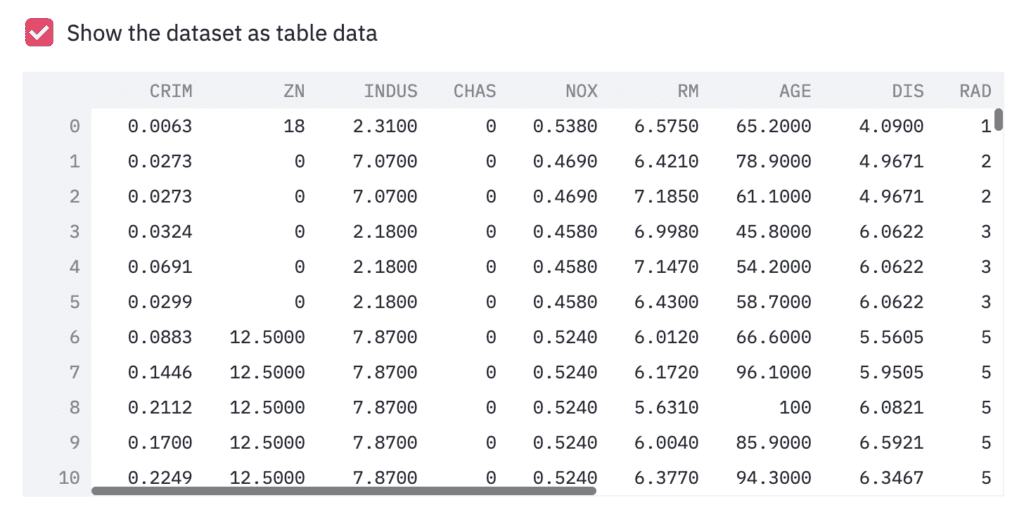
Third, we show the dataset as a table-data format, if we check the checkbox. The checkbox is create by ‘st.checkbox()’, and a table data is shown by ‘st.dataframe()’.
‘st.checkbox()’: creates a check box, which returns True when checked. ‘st.dataframe()’: display the data frame of the argument.
# Read the dataset
dataset = load_boston()
df = pd.DataFrame(dataset.data)
# Assign the columns into df
df.columns = dataset.feature_names
# Assign the target variable(house prices)
df["PRICES"] = dataset.target

# Show the table data
if st.checkbox('Show the dataset as table data'):
	st.dataframe(df)
For convenience, let’s create the box, where we can see a relationship between the target variable and the explanatory variables interactively.
‘st.checkbox()’: creates a check box, which returns True when checked. ‘st.selectbox()’: returns one element, we selected, from the argument.
# Check an exmple,  "Target" vs each variable
if st.checkbox('Show the relation between "Target" vs each variable'):
	checked_variable = st.selectbox(
		'Select one variable:',
		FeaturesName
		)
	# Plot
	fig, ax = plt.subplots(figsize=(5, 3))
	ax.scatter(x=df[checked_variable], y=df["PRICES"])
	plt.xlabel(checked_variable)
	plt.ylabel("PRICES")
	st.pyplot(fig)
Preprocessing
Here, we select the variables we will NOT use. We define the list ‘FeaturesName’, including the names of the explanatory variables.
# Explanatory variable
FeaturesName = [\
              #-- "Crime occurrence rate per unit population by town"
              "CRIM",\
              #-- "Percentage of 25000-squared-feet-area house"
              'ZN',\
              #-- "Percentage of non-retail land area by town"
              'INDUS',\
              #-- "Index for Charlse river: 0 is near, 1 is far"
              'CHAS',\
              #-- "Nitrogen compound concentration"
              'NOX',\
              #-- "Average number of rooms per residence"
              'RM',\
              #-- "Percentage of buildings built before 1940"
              'AGE',\
              #-- 'Weighted distance from five employment centers'
              "DIS",\
              ##-- "Index for easy access to highway"
              'RAD',\
              ##-- "Tax rate per $100,000"
              'TAX',\
              ##-- "Percentage of students and teachers in each town"
              'PTRATIO',\
              ##-- "1000(Bk - 0.63)^2, where Bk is the percentage of Black people"
              'B',\
              ##-- "Percentage of low-class population"
              'LSTAT',\
              ]
In streamlit, the multi-selection is available by ‘st.multiselect()’. We pass the variables for multi-selections to ‘st.multiselect()’.
‘st.multiselect()’: returns the multi elements, we selected, from the argument.
"""
## Preprocessing
"""
# Select the variables NOT to be used
Features_chosen = []
Features_NonUsed = st.multiselect(
	'Select the variables NOT to be used',
	FeaturesName)
Multiple selected variables are stored in ‘Features_NonUsed’, which will NOT be used. Let’s remove this unused variable from the dataset ‘df’.
df = df.drop(columns=Features_NonUsed)
NOTE: Markdown
Here, it should be noted about ‘Markdown’. The markdown style is useful! For example, the following comment outed statement is shown in web app as follows. With the markdown style, we can easily display the statement.
"""
# Markdown 1
## Markdown 2
### Markdown 3
"""
Next, as preprocessing, logarithmic conversion and standardization are performed. For logarithmic transformation, we select the variables that will be performed. On the other hand, for standardization, we take the form of selecting variables that won’t be performed.
The corresponding part of the code related to logarithmic conversion is as follows.
‘st.beta_columns(2)’: creates 2 columns ‘.radio()’: Put a box to select one from an argument.
left_column, right_column = st.beta_columns(2)
bool_log = left_column.radio(
			'Perform the logarithmic transformation?',
			('No','Yes')
			)

df_log, Log_Features = df.copy(), []
if bool_log == 'Yes':
	Log_Features = right_column.multiselect(
					'Select the variables you perform the logarithmic transformation',
					df.columns
					)
	# Perform logarithmic transformation
	df_log[Log_Features] = np.log(df_log[Log_Features])
And, the corresponding part of the code related to standardization is as follows.
left_column, right_column = st.beta_columns(2)
bool_std = left_column.radio(
			'Perform the standardization?',
			('No','Yes')
			)

df_std = df_log.copy()
if bool_std == 'Yes':
	Std_Features_chosen = []
	Std_Features_NonUsed = right_column.multiselect(
					'Select the variables NOT to be standardized (categorical variables)',
					df_log.drop(columns=["PRICES"]).columns
					)
	for name in df_log.drop(columns=["PRICES"]).columns:
		if name in Std_Features_NonUsed:
			continue
		else:
			Std_Features_chosen.append(name)
	# Perform standardization
	sscaler = preprocessing.StandardScaler()
	sscaler.fit(df_std[Std_Features_chosen])
	df_std[Std_Features_chosen] = sscaler.transform(df_std[Std_Features_chosen])
Split the dataset
To validate the model, we split the dataset into training and validation datasets. Interactively get information and split the dataset. Concretely, we put the boxes of the validation dataset size and the random seed.
Here, we use the following functions.
‘st.beta_columns(2)’: creates 2 columns ‘.number_input()’: Add a detail info to ‘st.beta_columns()’
Here, predict the training and validation data. Note that we have to perform logarithmic conversion against the variable we appointed.
Y_pred_train = regressor.predict(X_train)
Y_pred_val = regressor.predict(X_val)

# Inverse logarithmic transformation if necessary
if "PRICES" in Log_Features:
	Y_pred_train, Y_pred_val = np.exp(Y_pred_train), np.exp(Y_pred_val)
	Y_train, Y_val = np.exp(Y_train), np.exp(Y_val)
Here we use the R2 value as a validation indicator. Let’s calculate R2 of the validation dataset and display it in streamlit. You can easily do it with’st.write’.
"""
## Show the result
### Check R2 socre
"""
R2 = r2_score(Y_val, Y_pred_val)
st.write(f'R2 score: {R2:.2f}')
Plot
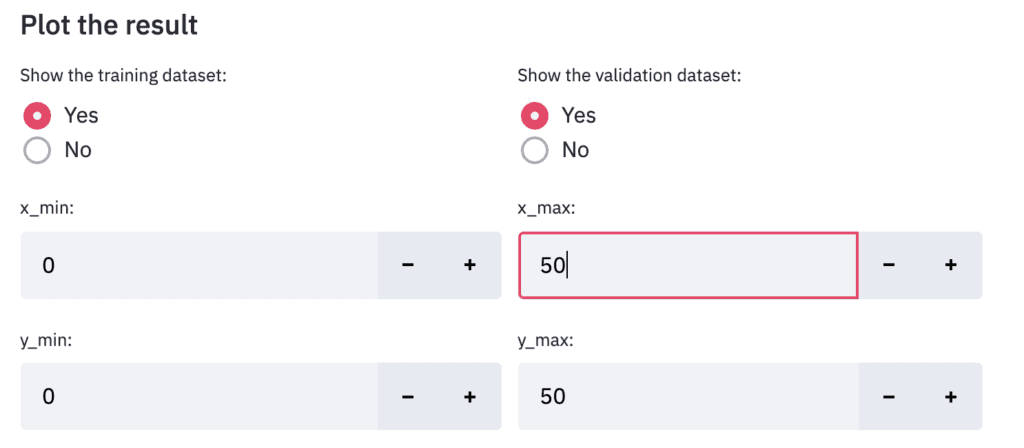
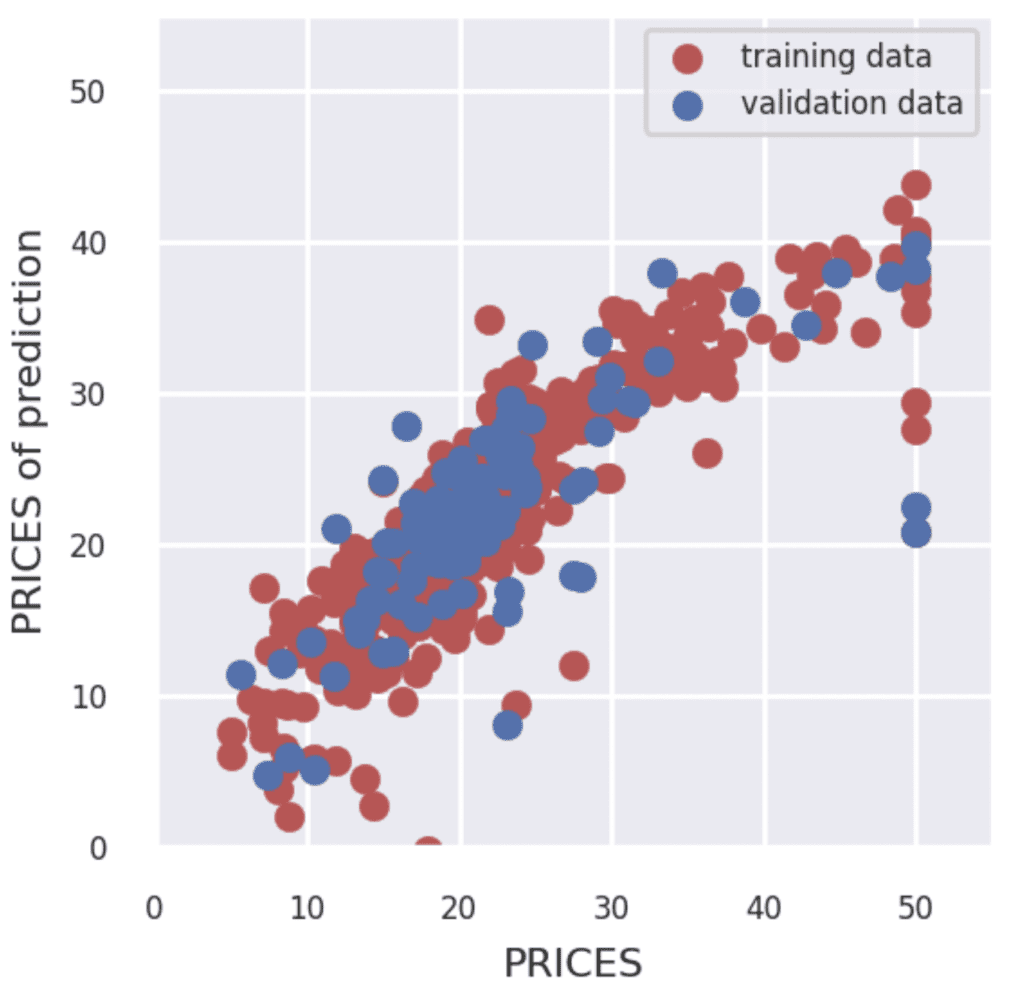
Finally, let’s output the result. Design the display settings for training data and verification data to be interactive. It is also designed to be able to interactively change the value range for the axes of the graph in the same way.
"""
### Plot the result
"""
left_column, right_column = st.beta_columns(2)
show_train = left_column.radio(
				'Show the training dataset:',
				('Yes','No')
				)
show_val = right_column.radio(
				'Show the validation dataset:',
				('Yes','No')
				)

# default axis range
y_max_train = max([max(Y_train), max(Y_pred_train)])
y_max_val = max([max(Y_val), max(Y_pred_val)])
y_max = int(max([y_max_train, y_max_val]))

# interactive axis range
left_column, right_column = st.beta_columns(2)
x_min = left_column.number_input('x_min:',value=0,step=1)
x_max = right_column.number_input('x_max:',value=y_max,step=1)
left_column, right_column = st.beta_columns(2)
y_min = left_column.number_input('y_min:',value=0,step=1)
y_max = right_column.number_input('y_max:',value=y_max,step=1)


fig = plt.figure(figsize=(3, 3))
if show_train == 'Yes':
	plt.scatter(Y_train, Y_pred_train,lw=0.1,color="r",label="training data")
if show_val == 'Yes':
	plt.scatter(Y_val, Y_pred_val,lw=0.1,color="b",label="validation data")
plt.xlabel("PRICES",fontsize=8)
plt.ylabel("PRICES of prediction",fontsize=8)
plt.xlim(int(x_min), int(x_max)+5)
plt.ylim(int(y_min), int(y_max)+5)
plt.legend(fontsize=6)
plt.tick_params(labelsize=6)
st.pyplot(fig)