A recursive function may be unfamiliar, especially to a beginner. This is because the concept is abstract, so that we don’t realize the opportunity to use it.
In this post, a brief description and an example of a recursive function are introduced. Through this example, the readers may realize it is helpful to keep your code simple.
What is a Recursive function?
A recursive function is a function that calls itself.
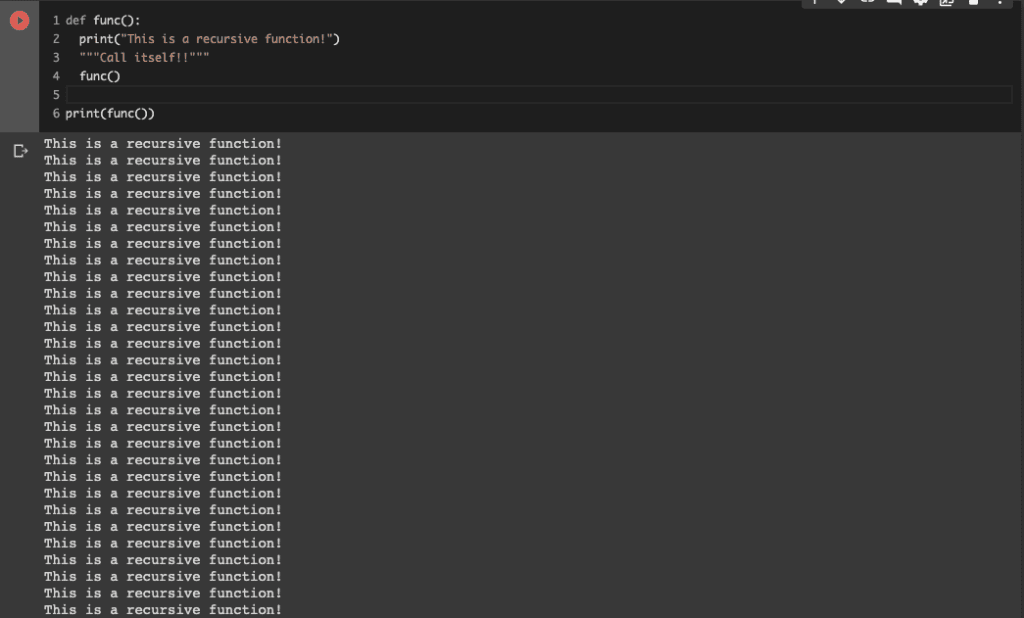
For example, the following code is the simple example.
It should be noted that, as a sensible reader may notice, running this function leads to an infinite loop.
def func():
  print("This is a recursive function!")
  """Call itself!!"""
  func()

print(func())
When to use it?
A function is a converter that performs one process. Therefore, a recursive function would be practical when creating a function that does the same thing multiple times.
Replacing similar processing with a recursive function leads to code simplification. Let’s experience it with the following simple example.
Example: factorial calculation
Here, one example is introduced. We will create the function for factorial calculations. Factorial calculations are like below.
$$N!=N\times(N-1)\times…\times2\times1$$
Without Recursive function
First, let’s implement without a recursive function. The code is below.
"""factorial calculation without recursive function"""
def factorial_nonrecursive(x):
  result = 1
  """N!=1*2*...*(N-1)*N"""
  for i in range(1, x+1):
    result = i*result
  return result


"""ex. 4! = 1*2*3*4 = 24"""
result = factorial_nonrecursive(4)
print(f"factorial: {result}")


>> factorial: 24
It may seem complicated at first glance, but the above code is just multiplying in order from 1 using for loop.
With Recursive function
Next, we perform refactoring of the above code with a recursive function. The code after refactoring is as follows.
"""factorial calculation with recursive function"""
def factorial_recursive(x):
  if x == 1:
    return 1
  else:
    return x*factorial_recursive(x-1)


"""ex. 4! = 1*2*3*4 = 24"""
result = factorial_recursive(4)
print(f"factorial: {result}")


>> factorial: 24
Did you realize that the code has become so simple?
Since the code is simple, it is easy to understand that the “factorial_recursive(x)” performs multiplication of the argument “x” with the previous returned result of this function.
Appendix: about Computational Cost
Here, we check the computational cost. We compare the calculating times between the above functions we created.
We import the necessary modules.
from time import time  # calculate time
import sys
sys.setrecursionlimit(50000) # Set the upper limit of the number of recursion
import numpy as np
from matplotlib import pyplot as plt
By the following codes, we get the time from begin to finish of calculating $N!$, where $N=10000$.
The first is the case with a recursive function.
N = 10000
cal_time_recursive = []
for i in range(1, N+1):
  begin_time = time()
  result = factorial_recursive(i)
  end_time = time()
  cal_time_recursive.append(end_time - begin_time)
The second is the case without a recursive function.
N = 10000
cal_time_nonrecursive = [] # calculation time
for i in range(1, N+1):
  begin_time = time()
  result = factorial_nonrecursive(i)
  end_time = time()
  cal_time_nonrecursive.append(end_time - begin_time)
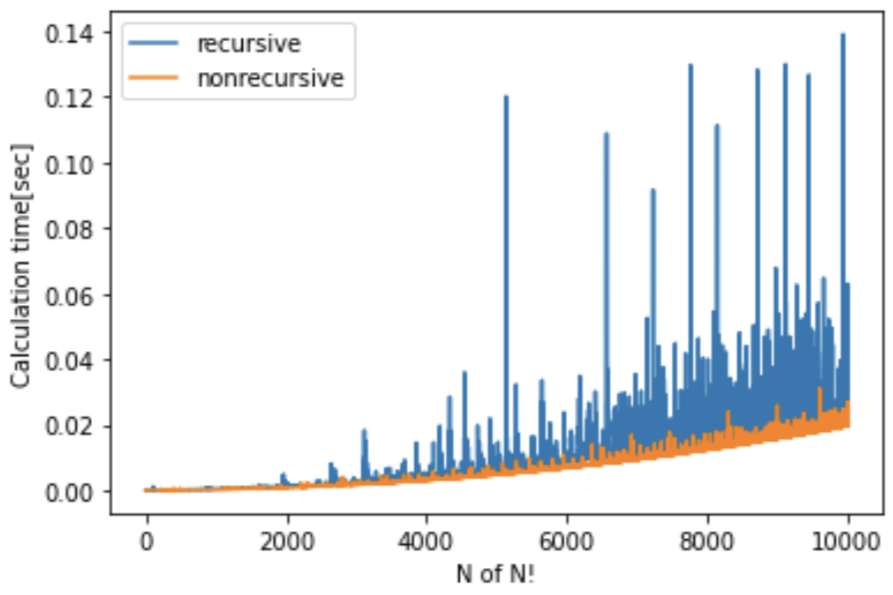
Finally, let’s check the graph of the calculation time of N! For N. The red and blue lines indicate the with-recursive and without-recursive cases, respectively.
You can see that the calculation time tends to be longer overall with recursion. This result would be due to the increase in the number of processes associated with the function calling itself sequentially. As you can see, recursive functions can simplify your code, but in some cases, they can take longer than usual.
Summary
A recursive function is a function that calls itself. Although it is unfamiliar with a python beginner, it is helpful to keep your code simple.
If you come across a situation where you can use it, please use it positively.
The machine learning approaches, such as decision-tree-based methods and linear regression, have been already introduced in other posts. These approaches are practical in real data science tasks.
However, deep learning approaches are also essential skills for a data scientist. In real, deep learning would be a more powerful approach when a dataset is larger than that of Boston house prices.
In this post, we will see a brief description of how to apply a neural network to the Boston house prices dataset.
from sklearn.datasets import load_boston
from sklearn import preprocessing
from sklearn.metrics import r2_score
import pandas as pd
import numpy as np
import matplotlib.pylab as plt
import seaborn as sns
sns.set()
import torch
import torch.nn as nn
import torch.nn.functional as F
import torch.optim as optim
Load the Dataset
In this post, we use the Boston house prices dataset in the scikit-learn library. We can easily load the dataset by just two lines below.
# from sklearn.datasets import load_boston
dataset = load_boston()
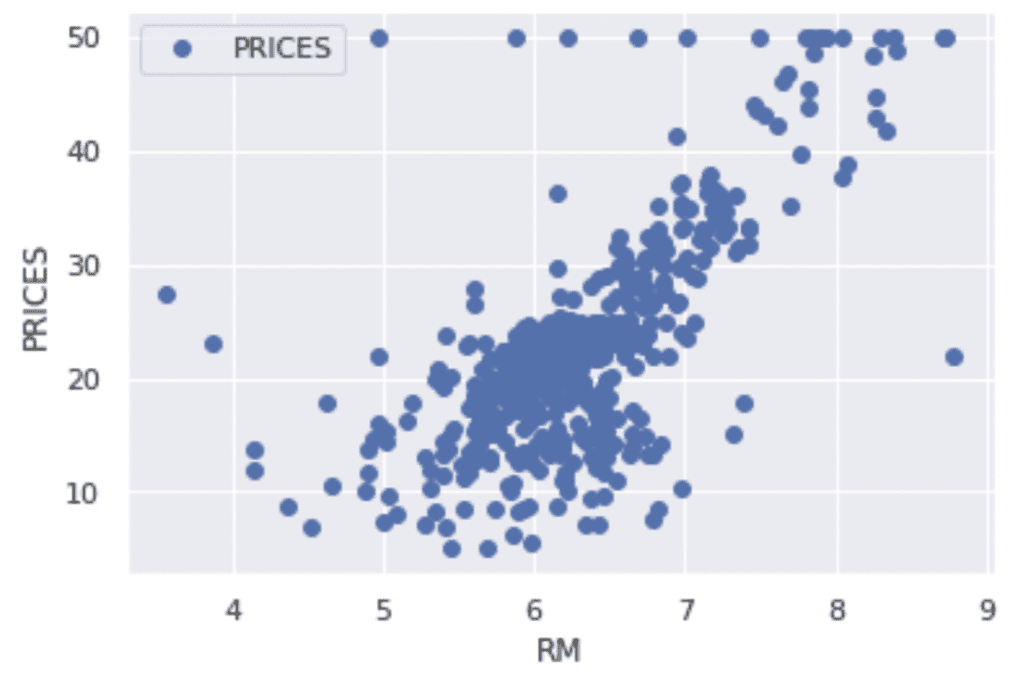
Let’s try to check the correlation between only “PRICES” and “RM”.
# import matplotlib.pylab as plt
f.plot(x="RM", y="PRICES", style="o")
plt.ylabel("PRICES")
plt.show()
Variables to be used
TargetName = "PRICES"
FeaturesName = [
              #-- "Crime occurrence rate per unit population by town"
              "CRIM",
              #-- "Percentage of 25000-squared-feet-area house"
              'ZN',
              #-- "Percentage of non-retail land area by town"
              'INDUS',
              #-- "Index for Charlse river: 0 is near, 1 is far"
              'CHAS',
              #-- "Nitrogen compound concentration"
              'NOX',
              #-- "Average number of rooms per residence"
              'RM',
              #-- "Percentage of buildings built before 1940"
              'AGE',
              #-- 'Weighted distance from five employment centers'
              "DIS",
              ##-- "Index for easy access to highway"
              'RAD',
              ##-- "Tax rate per $100,000"
              'TAX',
              ##-- "Percentage of students and teachers in each town"
              'PTRATIO',
              ##-- "1000(Bk - 0.63)^2, where Bk is the percentage of Black people"
              'B',
              ##-- "Percentage of low-class population"
              'LSTAT',
              ]
We prepare the input and target variables as “X” and “Y”.
X = f[FeaturesName]
Y = f[TargetName]
Standardize the Variables
We need to standardize or normalize the numerical variable in neural network analysis. This is because the magnitude of each variable affects its scale of parameters in a neural network. Therefore, the difference in the scale of the variables would make training of the model difficult.
From the above reason, we perform the standardization into the variables. In mathematically, the definition of the conversion of standardization is as follows.
To validate the performance of the trained model against unseen data, we have to split the dataset into the train data and the test data.
We pass the dataset “(X, Y)” to the “train_test_split()” function. The rate of the train data and the test data is defined by the argument “test_size”. Here, the rate is set to be “8:2”. And, “random_state” is set for reproducibility. You can use any number.
# from sklearn.model_selection import train_test_split
X_train, X_test, Y_train, Y_test = train_test_split(X_std, Y, test_size=0.2, random_state=99)
Define a Neural network model by PyTorch
We define a neural network model. The model has three fully connected layers.
In “__init__()”, we define the layers we will use. For example, the first layer “self.layer1” has defined by “nn.Linear()” in PyTorch, where the input and output sizes are 13(X.shape[1]) and 32, respectively. Note that the input size 13 is automatically determined from the number of input variables in the dataset, whereas the output size is arbitrary and you have to decide. Similarly, in the second(third) layer, the input size has been automatically determined by the output size of the previous layer. In contrast, the output size is arbitrary and you have to decide. Namely, you can design the neural network structure by output sizes.
In “forward()”, we define the neural network structure. The input data is “x”. And, the “x” is passed into “self.layer1(x)”, where its output is given into the activation function “F.relu()”. Note that the output of the final(third) layer doesn’t have to be applied in the activation function. It is because the final-layer output is the predicted housing prices!
# import torch
# import torch.nn as nn
# import torch.nn.functional as F

class NeuralNetwork(nn.Module):
        def __init__(self):
            super(NeuralNetwork, self).__init__()
            self.layer1 = nn.Linear(X.shape[1], 32) # input: X.shape[1]=13, output: 32
            self.layer2 = nn.Linear(32, 16)
            self.layer3 = nn.Linear(16, 1)

        def forward(self, x):
            x = F.relu( self.layer1(x) )
            x = F.relu( self.layer2(x) )
            x = self.layer3(x)

            return x

model = NeuralNetwork()
print(model)
Convert data into a Tensor
In PyTorch, we have to explicitly convert the NumPy array(or pandas DataFrame) into a tensor. The conversion can be performed by “torch.tensor()”, where the param “type” is for specifying a data type.
It must be noted that the data shape of the prediction data will be (***, 1), whereas the data shape of “Y_train” is (***, ). These differences will cause the problem in calculating the loss in training. Therefore, we should reshape the data shape of “Y_train” before converting it into a tensor.
# Convert into tensor
x = torch.tensor(np.array(X_train), dtype=torch.float)
y = torch.tensor(np.array(Y_train).reshape(-1, 1), dtype=torch.float)
Define an Optimizer
We define an optimizer. PyTorch covers many optimization algorithms. The popular and basic ones are SGD and Adam.
Here, we choose the SGD algorithm as an optimizer.
# import torch.optim as optim
optimizer = optim.SGD(model.parameters(), lr=0.005)
We passed the two arguments “model.parameters()” and “lr=0.005”.
The first one is the parameters of the neural network model. The optimizer updates these parameters in each training cycle.
The second parameter is the learning rate. The learning rate is a parameter that indicates how much the model parameters are updated at once. Basically, gradually updating the parameters will surely lead to the optimum solution. On the other hand, it takes time to learn. Therefore, we need to think about the learning rate and find an appropriate value.
If you would like to use Adam as an optimizer, instead of the above codes, specify as follows.
We define a loss function. PyTorch covers many types of loss functions. Here, we use the mean squared error as a loss function.
# define loss function
loss_function = nn.MSELoss()
Train the Model
Finally, we can train the model !
At each epoch, we performs:
Initialize the gradient of the model parameters
Calculate the loss
Calculate the gradient of the model parameters by backpropagation
Update the model parameters
We set epochs as 200. Then, we repeat the above 200 times.
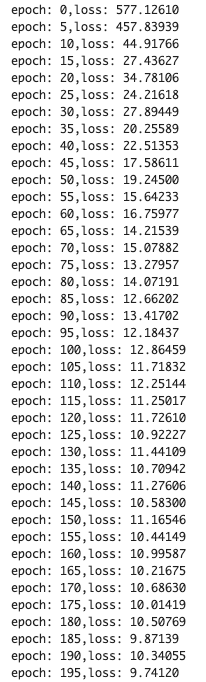
The loss would be gradually decreasing. It indicates that the training model is being well done !
# Epoch
epochs = 200

for i in range(epochs):
    # initialize the gradient of model parameters
    optimizer.zero_grad()

    # calculate the loss
    y_val = model(x)
    loss = loss_function(y_val, y)
    # Backpropagation
    loss.backward()
    # Update parameters
    optimizer.step()
    if (i % 5) == 0:
      print('epoch: {},'.format(i) + 'loss: {:.5f}'.format(loss))
Validation
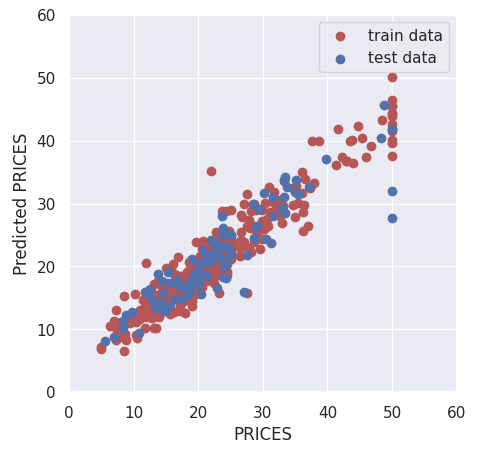
To validate the performance of the model, we predict the training and validation data. It should be noted here that we have to convert the tensor into the NumPy array after prediction.
We calculate $R^{2}$ score to confirm the prediction accuracy.
$R^{2}$ is the index for how much the model is fitted to the dataset. When $R^{2}$ is close to $1$, the model accuracy is good. Conversely, when $R^{2}$ approaches $0$, it means that the model accuracy is poor.
We can calculate $R^{2}$ by the “r2_score()” function in scikit-learn.
We have seen the Neural Network analysis constructed by PyTorch against the Boston house prices dataset. Although we use a very simple network structure, the accuracy of the validation data improved more than that of linear regression.
The author hopes this blog helps readers a little.
Streamlit makes it easier and faster to make your python script a web app. This means we can publish our codes as a web app!
In this post, we will see how to deploy our linear-regression-analysis code on a web app. In a web app format, we can try it in interactive. The origin of the linear regression analysis in this post is introduced in another post.
If the docker is available, you can use the Dockerfile in the following post, making it easy to prepare an environment for streamlit. Then, you can try the code in this post immediately.
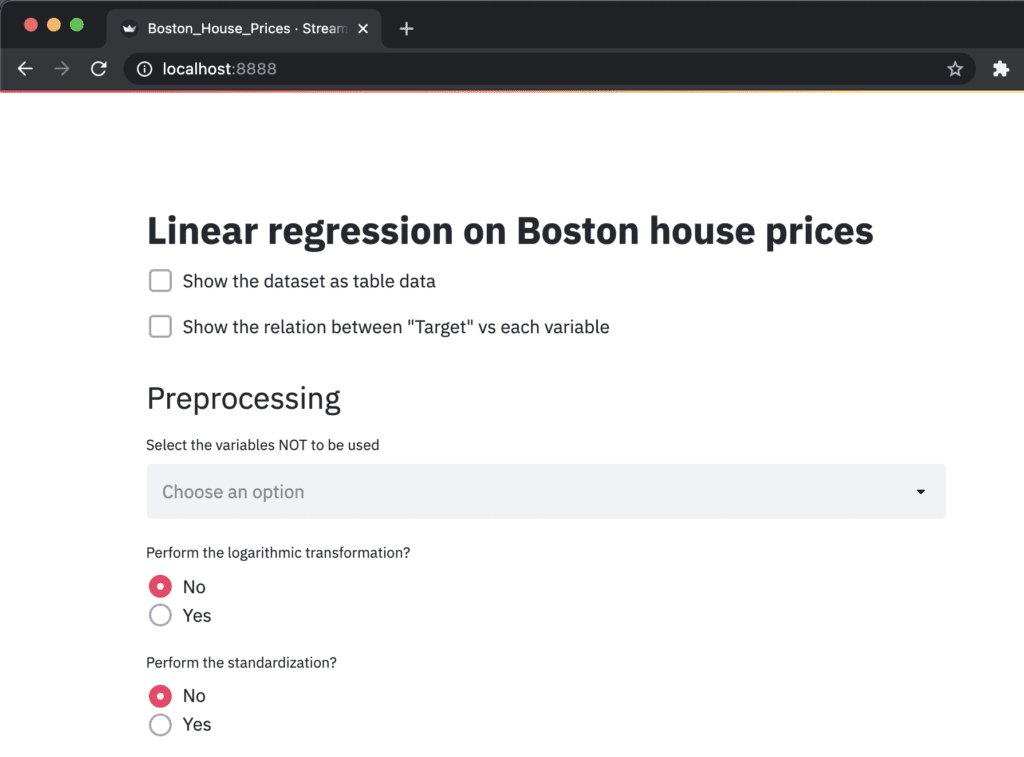
The web app will be opened by the following command in the web browser.
$ streamlit run Boston_House_Prices.py
Import libraries
import streamlit as st
import numpy as np
import pandas as pd
import matplotlib.pyplot as plt
import seaborn as sns
sns.set()
from sklearn.datasets import load_boston
from sklearn import preprocessing
from sklearn.model_selection import train_test_split
from sklearn.linear_model import LinearRegression
from sklearn.metrics import r2_score
Title
You can create the title quickly by ‘st.title()’.
‘st.title()’: creates a title box
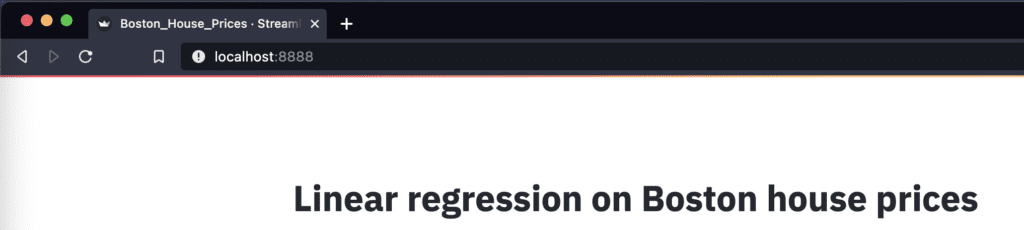
st.title('Linear regression on Boston house prices')
Load and Show the dataset
First, we load the dataset by ‘load_boston()’, and set it as pandas DataFrame by ‘pd.DataFame’.
Second, we assign the columns of the dataset and the target variable. The columns of the dataset are stored in ‘dataset.feature_names’. Similarly, the target variable is also stored in ‘dataset.target’.
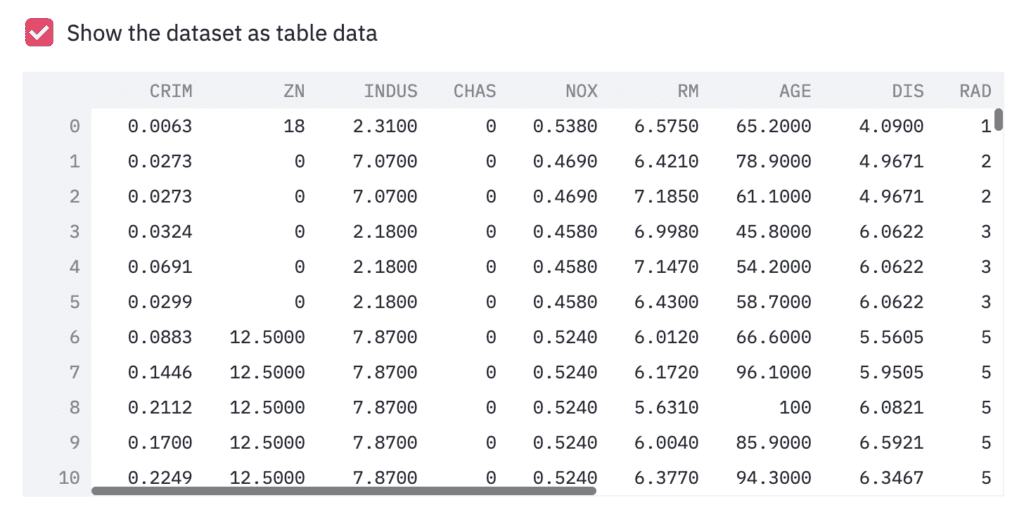
Third, we show the dataset as a table-data format, if we check the checkbox. The checkbox is create by ‘st.checkbox()’, and a table data is shown by ‘st.dataframe()’.
‘st.checkbox()’: creates a check box, which returns True when checked. ‘st.dataframe()’: display the data frame of the argument.
# Read the dataset
dataset = load_boston()
df = pd.DataFrame(dataset.data)
# Assign the columns into df
df.columns = dataset.feature_names
# Assign the target variable(house prices)
df["PRICES"] = dataset.target

# Show the table data
if st.checkbox('Show the dataset as table data'):
	st.dataframe(df)
For convenience, let’s create the box, where we can see a relationship between the target variable and the explanatory variables interactively.
‘st.checkbox()’: creates a check box, which returns True when checked. ‘st.selectbox()’: returns one element, we selected, from the argument.
# Check an exmple,  "Target" vs each variable
if st.checkbox('Show the relation between "Target" vs each variable'):
	checked_variable = st.selectbox(
		'Select one variable:',
		FeaturesName
		)
	# Plot
	fig, ax = plt.subplots(figsize=(5, 3))
	ax.scatter(x=df[checked_variable], y=df["PRICES"])
	plt.xlabel(checked_variable)
	plt.ylabel("PRICES")
	st.pyplot(fig)
Preprocessing
Here, we select the variables we will NOT use. We define the list ‘FeaturesName’, including the names of the explanatory variables.
# Explanatory variable
FeaturesName = [\
              #-- "Crime occurrence rate per unit population by town"
              "CRIM",\
              #-- "Percentage of 25000-squared-feet-area house"
              'ZN',\
              #-- "Percentage of non-retail land area by town"
              'INDUS',\
              #-- "Index for Charlse river: 0 is near, 1 is far"
              'CHAS',\
              #-- "Nitrogen compound concentration"
              'NOX',\
              #-- "Average number of rooms per residence"
              'RM',\
              #-- "Percentage of buildings built before 1940"
              'AGE',\
              #-- 'Weighted distance from five employment centers'
              "DIS",\
              ##-- "Index for easy access to highway"
              'RAD',\
              ##-- "Tax rate per $100,000"
              'TAX',\
              ##-- "Percentage of students and teachers in each town"
              'PTRATIO',\
              ##-- "1000(Bk - 0.63)^2, where Bk is the percentage of Black people"
              'B',\
              ##-- "Percentage of low-class population"
              'LSTAT',\
              ]
In streamlit, the multi-selection is available by ‘st.multiselect()’. We pass the variables for multi-selections to ‘st.multiselect()’.
‘st.multiselect()’: returns the multi elements, we selected, from the argument.
"""
## Preprocessing
"""
# Select the variables NOT to be used
Features_chosen = []
Features_NonUsed = st.multiselect(
	'Select the variables NOT to be used',
	FeaturesName)
Multiple selected variables are stored in ‘Features_NonUsed’, which will NOT be used. Let’s remove this unused variable from the dataset ‘df’.
df = df.drop(columns=Features_NonUsed)
NOTE: Markdown
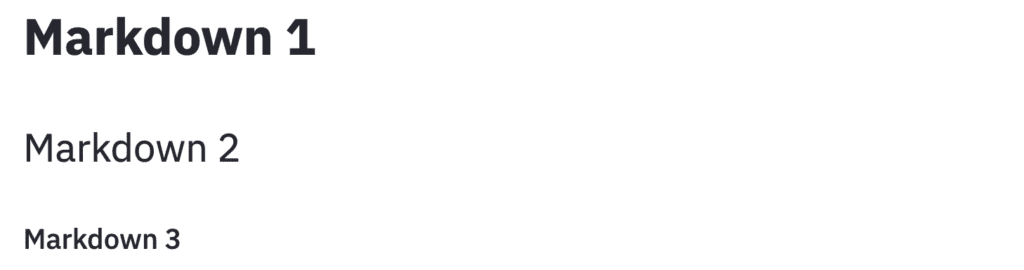
Here, it should be noted about ‘Markdown’. The markdown style is useful! For example, the following comment outed statement is shown in web app as follows. With the markdown style, we can easily display the statement.
"""
# Markdown 1
## Markdown 2
### Markdown 3
"""
Next, as preprocessing, logarithmic conversion and standardization are performed. For logarithmic transformation, we select the variables that will be performed. On the other hand, for standardization, we take the form of selecting variables that won’t be performed.
The corresponding part of the code related to logarithmic conversion is as follows.
‘st.beta_columns(2)’: creates 2 columns ‘.radio()’: Put a box to select one from an argument.
left_column, right_column = st.beta_columns(2)
bool_log = left_column.radio(
			'Perform the logarithmic transformation?',
			('No','Yes')
			)

df_log, Log_Features = df.copy(), []
if bool_log == 'Yes':
	Log_Features = right_column.multiselect(
					'Select the variables you perform the logarithmic transformation',
					df.columns
					)
	# Perform logarithmic transformation
	df_log[Log_Features] = np.log(df_log[Log_Features])
And, the corresponding part of the code related to standardization is as follows.
left_column, right_column = st.beta_columns(2)
bool_std = left_column.radio(
			'Perform the standardization?',
			('No','Yes')
			)

df_std = df_log.copy()
if bool_std == 'Yes':
	Std_Features_chosen = []
	Std_Features_NonUsed = right_column.multiselect(
					'Select the variables NOT to be standardized (categorical variables)',
					df_log.drop(columns=["PRICES"]).columns
					)
	for name in df_log.drop(columns=["PRICES"]).columns:
		if name in Std_Features_NonUsed:
			continue
		else:
			Std_Features_chosen.append(name)
	# Perform standardization
	sscaler = preprocessing.StandardScaler()
	sscaler.fit(df_std[Std_Features_chosen])
	df_std[Std_Features_chosen] = sscaler.transform(df_std[Std_Features_chosen])
Split the dataset
To validate the model, we split the dataset into training and validation datasets. Interactively get information and split the dataset. Concretely, we put the boxes of the validation dataset size and the random seed.
Here, we use the following functions.
‘st.beta_columns(2)’: creates 2 columns ‘.number_input()’: Add a detail info to ‘st.beta_columns()’
Here, predict the training and validation data. Note that we have to perform logarithmic conversion against the variable we appointed.
Y_pred_train = regressor.predict(X_train)
Y_pred_val = regressor.predict(X_val)

# Inverse logarithmic transformation if necessary
if "PRICES" in Log_Features:
	Y_pred_train, Y_pred_val = np.exp(Y_pred_train), np.exp(Y_pred_val)
	Y_train, Y_val = np.exp(Y_train), np.exp(Y_val)
Here we use the R2 value as a validation indicator. Let’s calculate R2 of the validation dataset and display it in streamlit. You can easily do it with’st.write’.
"""
## Show the result
### Check R2 socre
"""
R2 = r2_score(Y_val, Y_pred_val)
st.write(f'R2 score: {R2:.2f}')
Plot
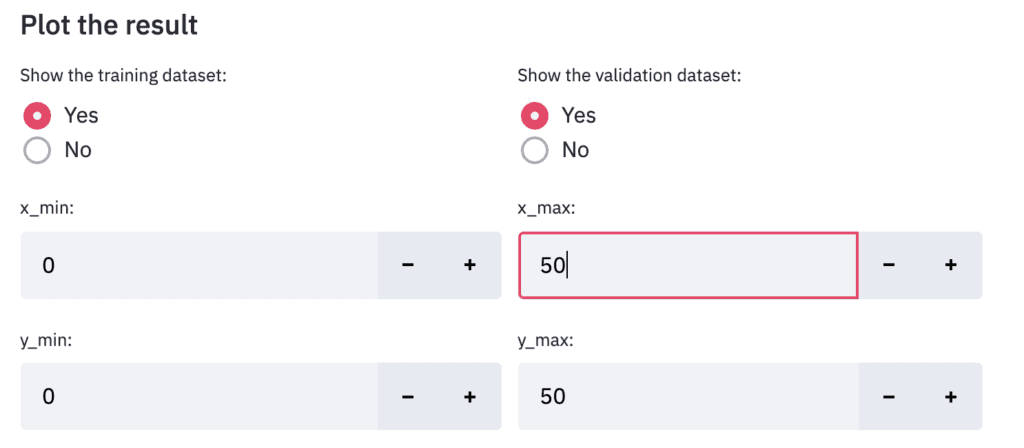
Finally, let’s output the result. Design the display settings for training data and verification data to be interactive. It is also designed to be able to interactively change the value range for the axes of the graph in the same way.
"""
### Plot the result
"""
left_column, right_column = st.beta_columns(2)
show_train = left_column.radio(
				'Show the training dataset:',
				('Yes','No')
				)
show_val = right_column.radio(
				'Show the validation dataset:',
				('Yes','No')
				)

# default axis range
y_max_train = max([max(Y_train), max(Y_pred_train)])
y_max_val = max([max(Y_val), max(Y_pred_val)])
y_max = int(max([y_max_train, y_max_val]))

# interactive axis range
left_column, right_column = st.beta_columns(2)
x_min = left_column.number_input('x_min:',value=0,step=1)
x_max = right_column.number_input('x_max:',value=y_max,step=1)
left_column, right_column = st.beta_columns(2)
y_min = left_column.number_input('y_min:',value=0,step=1)
y_max = right_column.number_input('y_max:',value=y_max,step=1)


fig = plt.figure(figsize=(3, 3))
if show_train == 'Yes':
	plt.scatter(Y_train, Y_pred_train,lw=0.1,color="r",label="training data")
if show_val == 'Yes':
	plt.scatter(Y_val, Y_pred_val,lw=0.1,color="b",label="validation data")
plt.xlabel("PRICES",fontsize=8)
plt.ylabel("PRICES of prediction",fontsize=8)
plt.xlim(int(x_min), int(x_max)+5)
plt.ylim(int(y_min), int(y_max)+5)
plt.legend(fontsize=6)
plt.tick_params(labelsize=6)
st.pyplot(fig)
In this short post, we construct the environment for streamlit by docker. We create a docker image from a Dockerfile. And, we will see how to construct and run a docker container, and build a web app on its container.
Dockerfile
The entire contents of the Dockerfile are as follows.
FROM python:3.8.8

RUN pip install --upgrade pip
RUN pip install streamlit==0.78.0 \
				numpy==1.20.1 \
				pandas==1.2.3 \
				matplotlib==3.3.4 \
				seaborn==0.11.1 \
				scikit-learn==0.24.1

WORKDIR /work
We create the docker image based on the python image, whose version is 3.8.8.
And, we upgrade pip, to install the external python libraries. In addition to streamlit, to make things easier later, we also install numpy, pandas, matplotlib, seaborn, and scikit-learn.
Note that the last sentense ‘WORKDIR /work’ indicates that the current directory is set at ‘/work/’ after we enter the docker container.
Build a Dockerfile
Let’s create a docker image from the Dockerfile. Execute the following command in the directory where the Dockerfile exists.
$ docker build .
After building the docker image, you can confirm the result by the following command. Later, we will use the ‘IMAGE ID’.
$ docker images
Run a docker container
Here, we run the docker container from the above docker image. The command format is as follows.
$ docker run -it -p 8888:8888 -v ~/mounted_to_docker/:/work <IMAGE ID> bash

'-p 8888:8888':
-> Allows the port, whose number is 8888, in a docker container

'-v ~/mounted_to_docker/:/work':
->Synchronizes the local directory you specified('~/mounted_to_docker/') with the directory in the container('/work').
$ docker run -it -p 8888:8888 -v ~/mounted_to_docker/:/work 8316e8947747 bash
When the docker container was successfully running, you would be in the container.
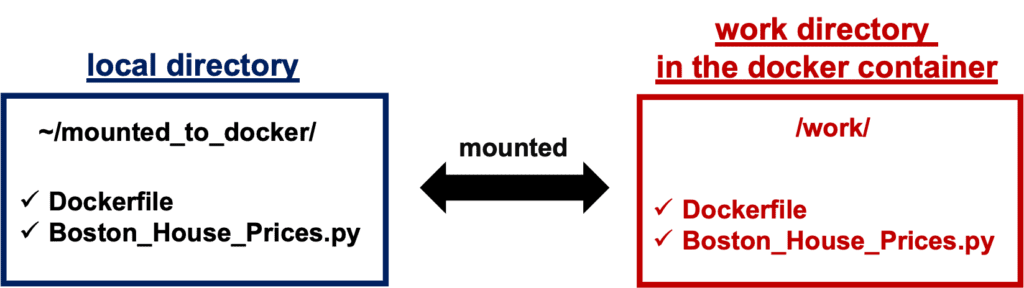
Your local directory ‘~/mounted_to_docker/’ is mounted to the working directory ‘/work’ in the container.
By the ‘ls’ command, you can check whether your local directory is mounted to the working directory in the container.
Run streamlit
In the container, it is possible to use streamlit. You can execute your python script designed with streamlit as follows.
$ streamlit run Boston_House_Prices.py --server.port 8888
The ‘Network URL: http://172.17.0.2:8888’ is combined to ‘localhost:8888’. Therefore, you can view your web app created from ‘Boston_House_Prices.py’ at ‘localhost:8888’ in a web browser.
Congulaturation!! You have prepared the environment for using strea.
Announcement
The new book for a tutorial of Streamlit has been published on Amazon Kindle, which is registered in Kindle Unlimited. Any member can read it !
Streamlit is a fantastic library, making it easier and faster to make your python script a web app. This library makes it possible to publish your code as a web app! In addition, streamlit is designed with a simple UX, low code, and a readable official document.
In this post, we will see how to set up the environment of streamlit. In another post, we will deploy your data analysis on your web app, i.e., to publish your data analysis code as an interactive format.
Book was published
The new book for a tutorial of Streamlit has been published on Amazon Kindle, which is registered in Kindle Unlimited. Any member can read it !
The execute command is as follows. Your python script(sample.py) will be converted into a web app. A web app will open in a web browser.
$ streamlit run sample.py
Your app can be accessed from a web browser with “localhost:8888” of the URL.
Note that you can kill the web app by “control + C”(for Mac) or “Ctrl + C”(for Windows) in the terminal or the command prompt.
Once you run a python script, you can modify the script interactively. For example, after editing and saving the script, you can confirm the result by reloading the browser.
NOTE) Set up by Docker
If you use docker, it is easy to create an environment for streamlit. You can easily create it from Dockerfile.
FROM python:3.8.8

WORKDIR /opt
RUN pip install --upgrade pip
RUN pip install streamlit==0.78.0

WORKDIR /work
Build a docker image from a Dockerfile. Move the directory where the Dockerfile exists.
$ docker build .
Check the docker image created from Dockerfile by the following command.
$ docker images
Then, create the docker container from the docker image.
$ docker run -it -p 8888:8888 -v ~/(local folder PATH):/(container work directory PATH) <Image ID> bash

# ex.) docker run -it -p 8888:8888 -v ~/streamlit-demo:/work 109bbbac097f bash
You can execute streamlit as follows.
$ streamlit run sample.py --server.port 8888
From the above sequence, your app can be accessed by the URL “localhost:8888” in a web browser.
However, it is possible that the PATH of the brew executable file is not in the PATH. In that case, add the following sentence to the environment setting file of shell. The shell config file is “.bashrc” if you are using bash. If you are using zsh, the config file is “.zshrc” or “.zshenv”. Note that the default shell on M1 Mac is zsh.
# Homebrew
export PATH=/opt/homebrew/bin:$PATH
Here, your PC can recognize where the brew executable file exists in the directories.
Summary
We have seen how to install Homebrew on M1 Mac. With Homebrew, we can manage applications easily. For example, we can install Git, Python and so many utility applications.
A set data structure may be unfamiliar to a Python beginner. A set is used for sequence data structures. Therefore, you can have an image against a set like a list, tuple, and dictionary.
First, let’s look at a list as an example. The sample list “sample_list” has six elements, however, whose unique elements are three kinds. The elements are four “apple”, one “orange”, and one “grape”.
You might have encountered the situation that you would like to know the unique elements of a list. Such a situation is the time to use the set() function in Python. Note that the set() is included in Python as a standard module, so you don’t need to import any external module.
It is easy. You just pass the list to the set() function as follows.
Of course, if there are overlaps when we define the elements, these are ignored. Let’s put several “apple” elements in the set when defining. You will see that additional “apple” elements are ignored.
A set is so useful in data science. This is because we have many situations to confirm the overlaps between datasets.
Here is an example. We will check the overlaps of the id column between training and validation datasets. We can do this easily by the set() function and the “intersection” method. The intersection method returns the overlaps elements between two set-type data.
id_train = ["01", "02", "03", "04", "05"]
id_validation = ["04", "05", "06", "07", "08"]

# Into a set data structure
id_train_set = set(id_train)
id_validation_set = set(id_validation)

# Check an overlaps
id_overlap = id_train_set.intersection(id_validation_set)
print(id_overlap)

>>  {'05', '04'}
We have known that the elements of “05” and “04” coexist in the training and validation datasets. From this fact, we should perform a preprocessing, for example dropping overlap data.
Mixing the same information as the training data with the validation data is called data leakage, which leads to an overestimation of accuracy.
Summary
As a sequence data structure, a list, tuple, dictionary are famous. However, a set is practical when we treat unique elements.
You will surely come across a situation where you want to know the unique element of sequence-type data. Recall that there is a set data structure in the Python standard module s at that time.
The famous machine learning algorithms, such as Random Forest and Gradient Boosting Decision Trees(GBDT), are based on the decision tree method. Therefore, it is a good choice to start by learning a decision tree method.
In this post, we will see a brief description of the decision tree method and the sample code. We will apply a regression analysis of the decision tree method to the Boston house prices dataset.
What is a decision tree method?
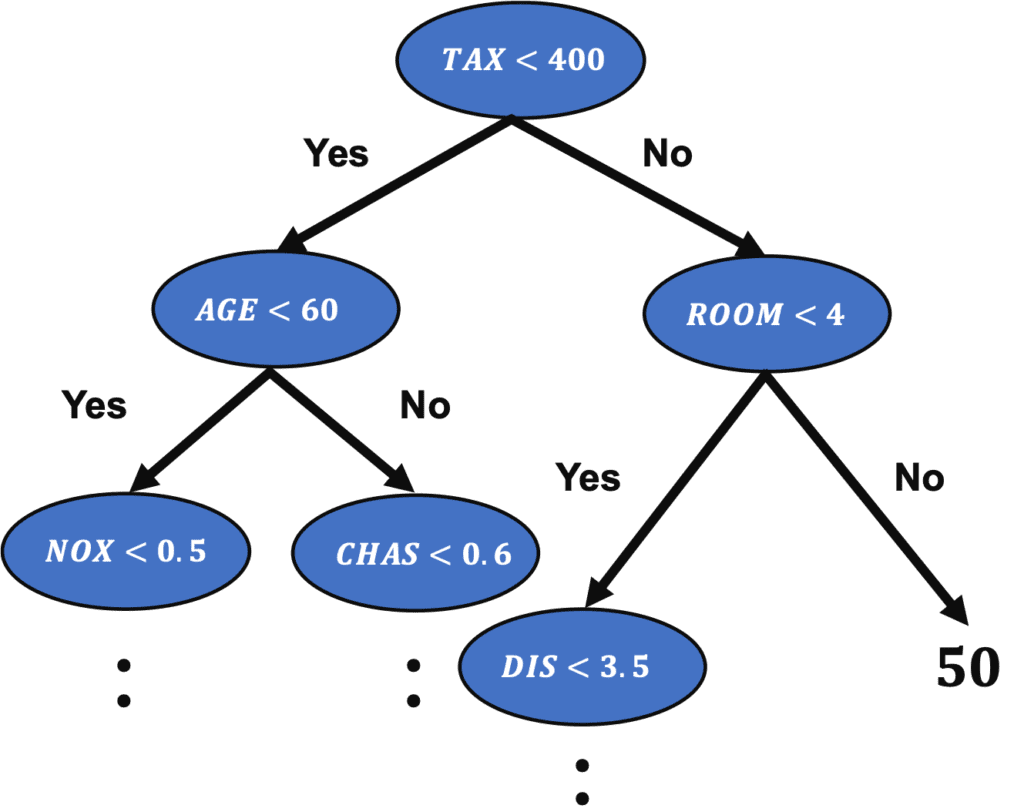
The decision tree is a method of predicting by repeating the case classification of input information. It is recognized as a convenient technique because it can be used for both regression and classification problems.
The model created by a decision tree method becomes more expressive as the number of conditional branches increases. On the other hand, it can be overfitting to the training data, taking into account non-essential conditional branches.
From here, let’s apply a decision tree method to the regression problem.
Load the Dataset
In this post, we use the Boston house prices dataset in the scikit-learn library. We can easily load the dataset by just two lines below.
from sklearn.datasets import load_boston
dataset = load_boston()
The details of the Boston house prices dataset, an exploratory data analysis, is introduced in another post.
import pandas as pd

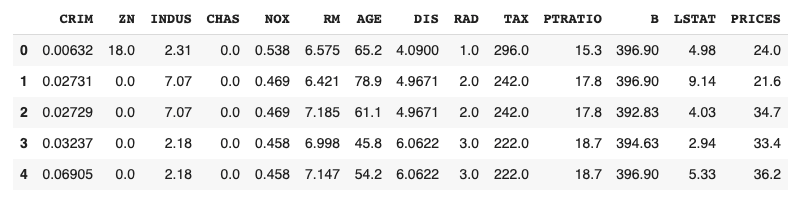
f = pd.DataFrame(dataset.data)
f.columns = dataset.feature_names
f["PRICES"] = dataset.target
f.head()
Example: RM vs PRICES
Let’s try to check the correlation between only “PRICES” and “RM”.
import matplotlib.pylab as plt  #-- "Matplotlib" for Plotting

f.plot(x="RM", y="PRICES", style="o")
plt.ylabel("PRICES")
plt.show()
Variables to be used
TargetName = "PRICES"
FeaturesName = [\
              #-- "Crime occurrence rate per unit population by town"
              "CRIM",\
              #-- "Percentage of 25000-squared-feet-area house"
              'ZN',\
              #-- "Percentage of non-retail land area by town"
              'INDUS',\
              #-- "Index for Charlse river: 0 is near, 1 is far"
              'CHAS',\
              #-- "Nitrogen compound concentration"
              'NOX',\
              #-- "Average number of rooms per residence"
              'RM',\
              #-- "Percentage of buildings built before 1940"
              'AGE',\
              #-- 'Weighted distance from five employment centers'
              "DIS",\
              ##-- "Index for easy access to highway"
              'RAD',\
              ##-- "Tax rate per $100,000"
              'TAX',\
              ##-- "Percentage of students and teachers in each town"
              'PTRATIO',\
              ##-- "1000(Bk - 0.63)^2, where Bk is the percentage of Black people"
              'B',\
              ##-- "Percentage of low-class population"
              'LSTAT',\
              ]
We prepare the input and target variables as “X” and “Y”.
X = f[FeaturesName]
Y = f[TargetName]
No need to perform standardization
We don’t need to standardize or normalize the numerical variable in a decision tree analysis. This is because the decision tree classifies the cases by focusing only on the magnitude relationship of the values. Therefore, the difference in the scale of the variables does NOT affect the final result.
Split the Dataset
To validate the performance of the trained model against unseen data, we have to split the dataset into the train data and the test data.
We pass the dataset “(X, Y)” to the “train_test_split()” function. The rate of the train data and the test data is defined by the argument “test_size”. Here, the rate is set to be “8:2”. And, “random_state” is set for reproducibility. You can use any number.
from sklearn.model_selection import train_test_split
X_train, X_test, Y_train, Y_test = train_test_split(X, Y, test_size=0.2, random_state=99)
Create a model instance
We create a decision-tree instance and pass the training dataset to it.
# Fitting Decision Tree Regression to the dataset
from sklearn.tree import DecisionTreeRegressor
regressor = DecisionTreeRegressor()
regressor.fit(X_train, Y_train)
Validation
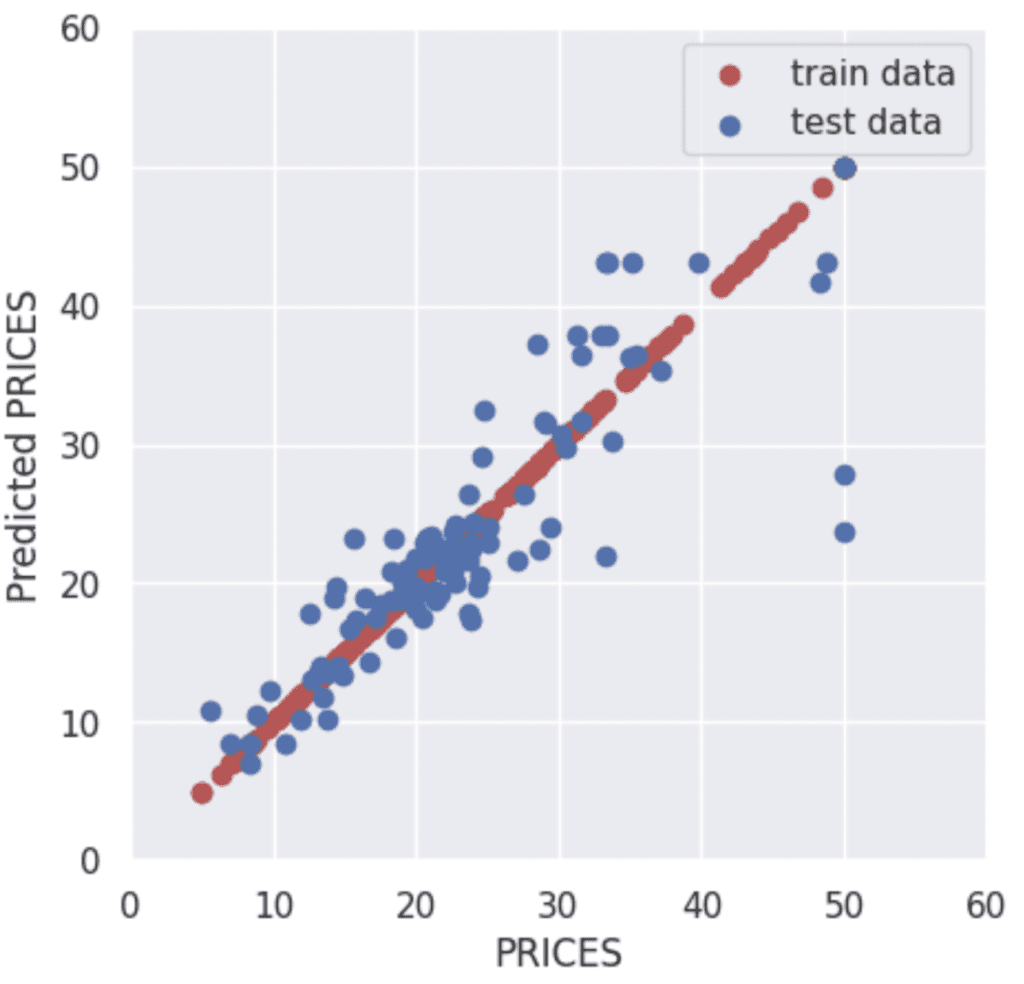
To validate the performance of the model, we predict the training and validation data.
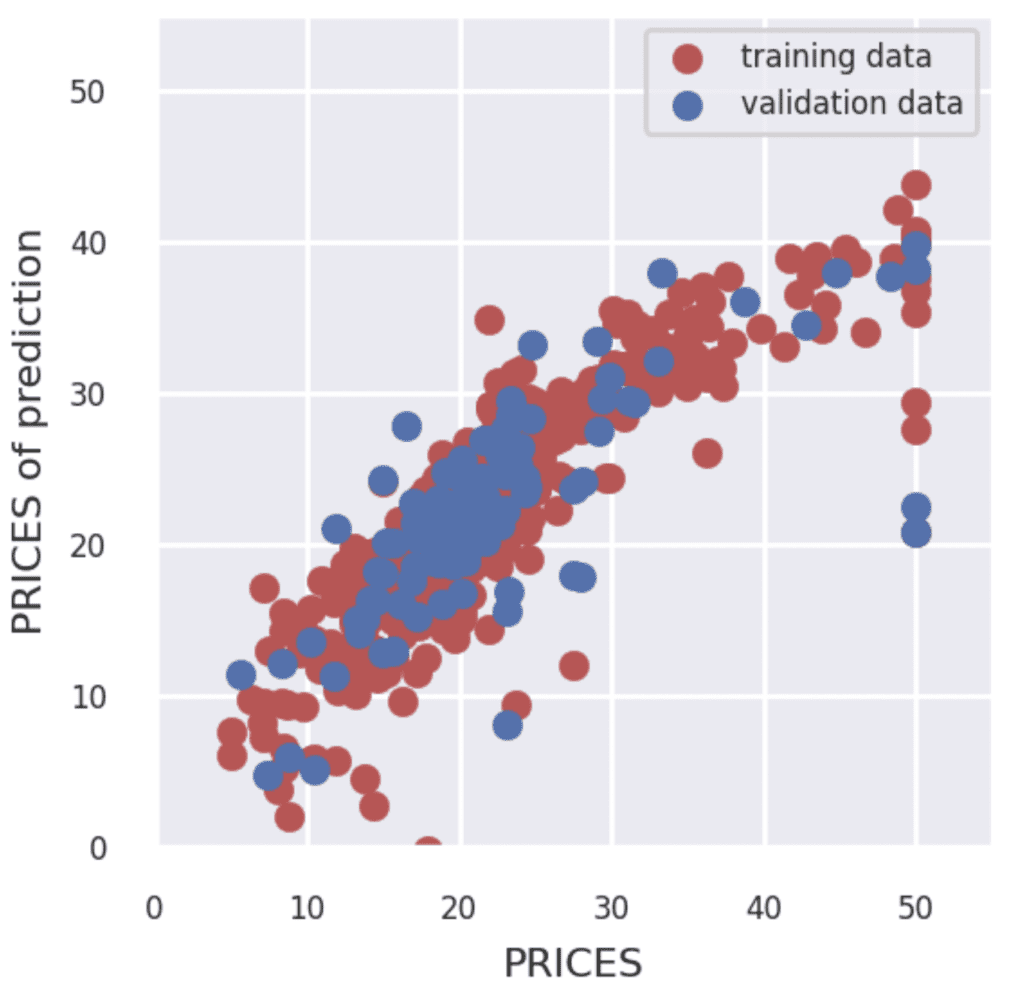
The red and blue circles show the results of the training and validation data, respectively.
To confirm the prediction accuracy of the verification data, we check $R^{2}$ score, the coefficient of determination. $R^{2}$ is the index for how much the model is fitted to the dataset. When $R^{2}$ is close to $1$, the model accuracy is good. Conversely, when $R^{2}$ approaches $0$, it means that the model accuracy is poor.
We can calculate $R^{2}$ by the “r2_score()” function in scikit-learn.
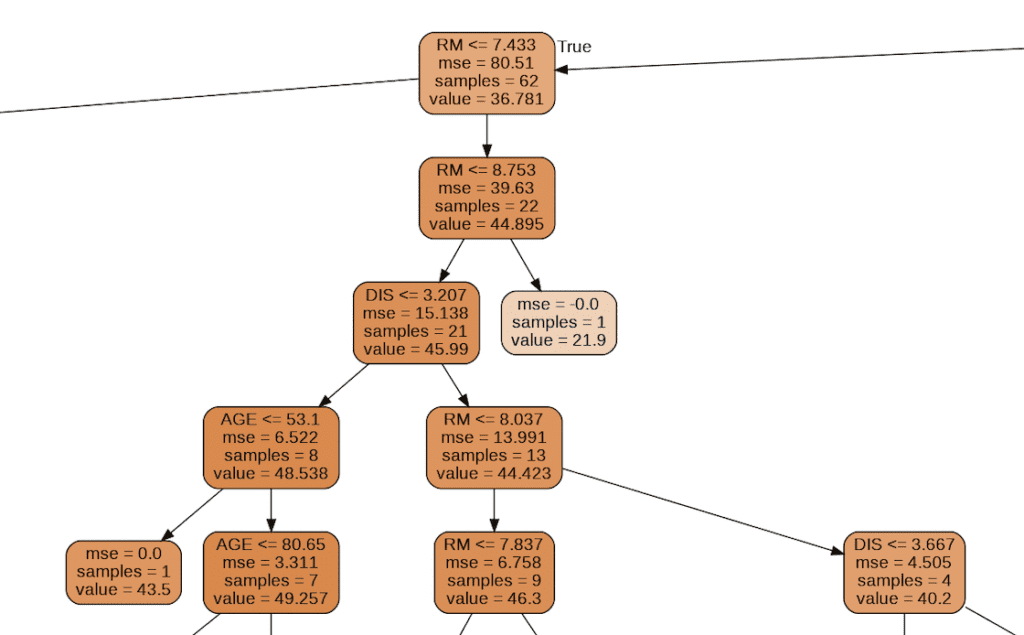
from sklearn.tree import export_graphviz
import pydotplus
from IPython.display import Image
export_graphviz(regressor, out_file="tree-structure.dot", feature_names=X_train.columns, filled=True, rounded=True)
g = pydotplus.graph_from_dot_file(path="tree-structure.dot")
Image(g.create_png())
Summary
We have seen the decision tree analysis against the Boston house prices dataset. In the case of one decision tree model, the accuracy of the validation data is a little worse than the accuracy of the training data. One way to improve accuracy is to use the mean values predicted by multiple models. This is called an ensemble. In the decision tree model base, this ensemble method is called Random Forest and can be easily implemented.
The author hopes this blog helps readers a little.
In this post, we will learn the tutorial of PyCaret from the regression problem; prediction of diabetes progression. PyCaret is so useful especially when you start to tackle a machine learning problem such as regression and classification problems. This is because PyCaret makes it easy to perform preprocessing, comparing models, hyperparameter tuning, and prediction.
Requirement
PyCaret is now highly developed, so you should check the version of the library.
If you have NOT installed PyCaret yet, you can easily install it by the following command on your terminal or command prompt.
$pip install pycaret
Or you can specify the version of PyCaret.
$pip install pycaret==2.2.3
From here, the sample code in this post is supposed to run on Jupyter Notebook.
Import Library
##-- PyCaret
import pycaret
from pycaret.regression import *
##-- Pandas
import pandas as pd
from pandas import Series, DataFrame
##-- Scikit-learn
import sklearn
Load dataset
In this post, we use “the diabetes dataset” from scikit-learn library. This dataset is easy to use because we can load this dataset from the scikit-learn library, NOT from the external file.
We will predict a quantitative measure of diabetes progression one year after baseline. So, the target variable is diabetes progression in “dataset.target“. And, there are ten explanatory variables (age, sex, body mass index, average blood pressure, and six blood serum measurements).
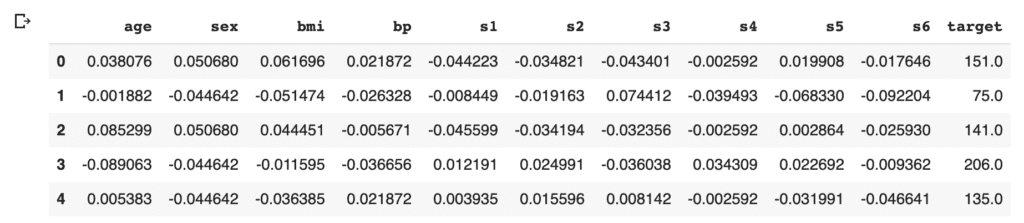
First, load the dataset from “load_diabetes()” as “dataset”. And, for convenience, convert the dataset into the pandas-DataFrame form.
from sklearn.datasets import load_diabetes
dataset = load_diabetes()

df = pd.DataFrame(dataset.data)
It should be noted that we can confirm the description of the dataset.
print(dataset.DESCR)
An excerpt of the explanation of the explanatory variables is as follows.
:Attribute Information:
    - age     age in years
    - sex
    - bmi     body mass index
    - bp      average blood pressure
    - s1      tc, T-Cells (a type of white blood cells)
    - s2      ldl, low-density lipoproteins
    - s3      hdl, high-density lipoproteins
    - s4      tch, thyroid stimulating hormone
    - s5      ltg, lamotrigine
    - s6      glu, blood sugar level
Then, we assign the above names of the columns to the data frame of pandas. And, we create the “target” column, i.s., the prediction target, and assign the supervised values.
Here, we devide the dataset into train- and test- datasets, making it possible to check the ability of the trained model against an unseen data. We split the dataset into train and test datasets, as 8:2.
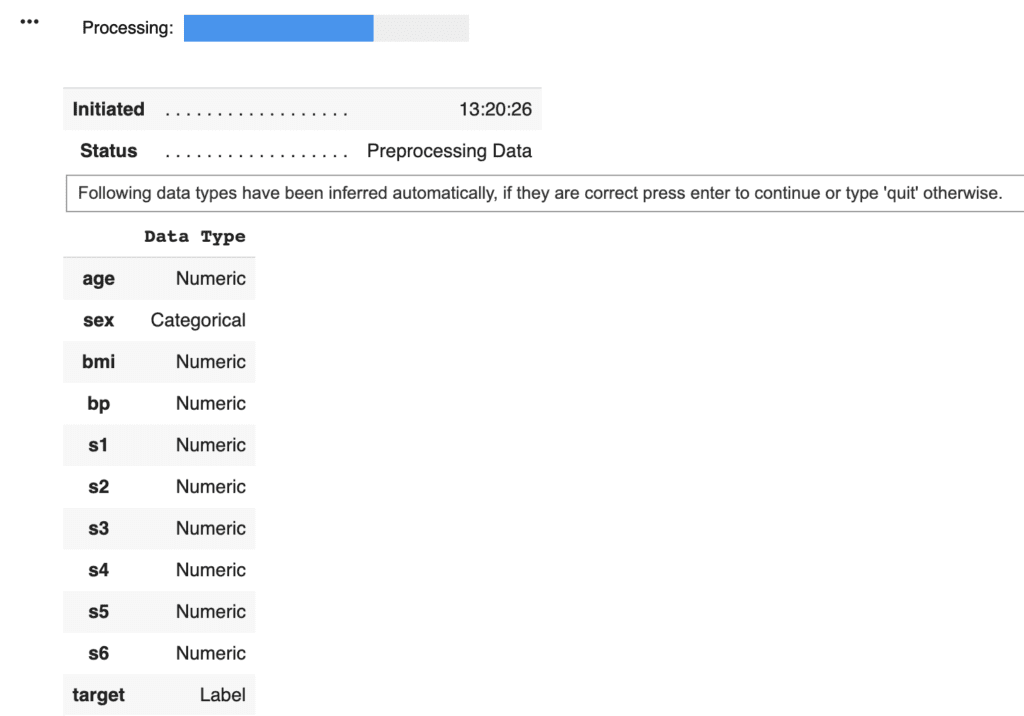
PyCaret needs to initialize an environment by the “setup()” function. Conveniently, PyCaret infers the data type of the variables in the dataset. Due to regression analysis, let’s leave only the numerical data. Namely, we delete the categorical variables. This approach would be practical as a first analysis to understand the dataset.
Arguments of setup() are the dataset as Pandas DataFrame, the target-column name, and the “session_id”. The “session_id” equals a random seed.
model = setup(data = data, target = "target", session_id=99)
PyCaret told us that just “sex” is a categorical variable. Then, we drop its columns and reset up.
data = data.drop('sex', 1) # "1" indicate the columns.
model = setup(data = data, target = "target", session_id=99)
Compare models
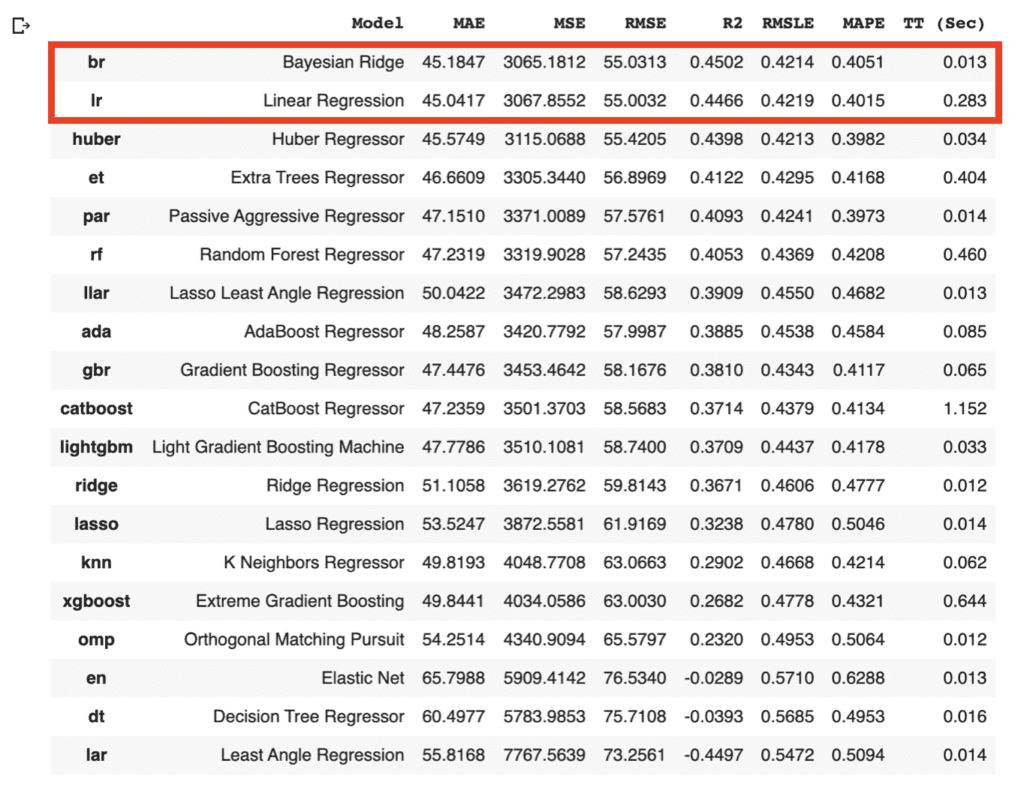
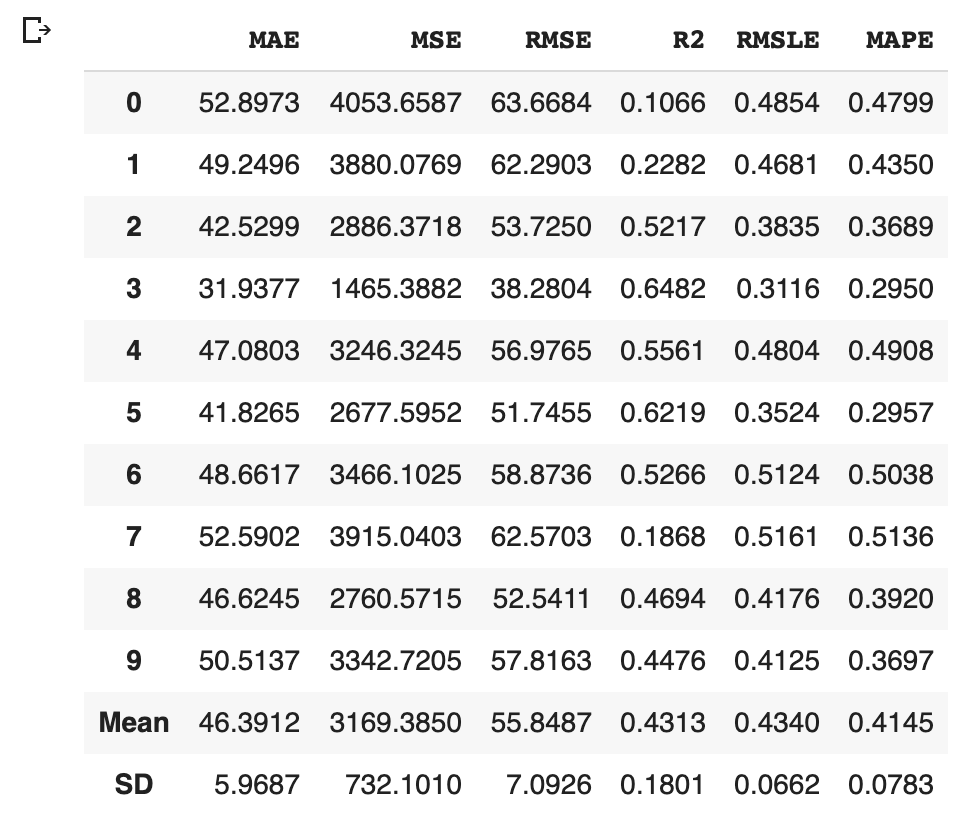
We can easily compare models between different machine-learning methods. It is so practical just to know which is more effective, the regression model or the decision tree model.
compare_models()
As the above results, the br(Bayesian Ridge) and lr(Linear Regression) have the highest accuracies in the above models. In general, there is a tendency that a decision tree method realizes a higher accuracy than that of a regression method. However, from the viewpoint of model interpretability, the regression method is more effective than the decision tree method, especially when the accuracy is almost the same. Regression analysis tends to be easy to provide insight into the dataset.
Due to the simplicity of the technique and the interpretability of the model, we will adopt lr(Linear Regression) for the models that will be used below. The details of the linear regression technique are described in another post below.
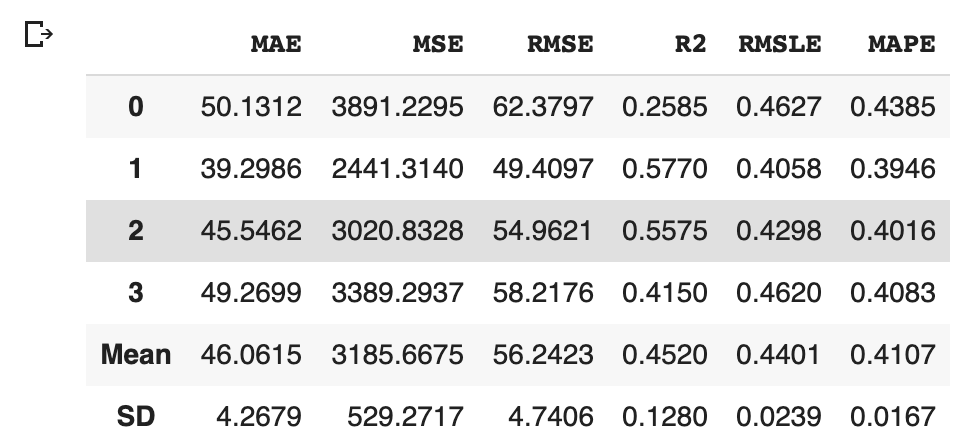
We can create the selected model by create_model() with the argument of “lr”. Another argument of “fold” is the number of cross-validation. “fold = 4” indicates we split the dataset into four and train the model in each dataset separately.
lr = create_model("lr", fold=4)
Optimize Hyperparameters
PyCaret makes it possible to optimize the hyperparameters. Just you pass the object cerated by create_model() to tune_model(). Note that optimization is done by the random grid-search technique.
Predict the test data
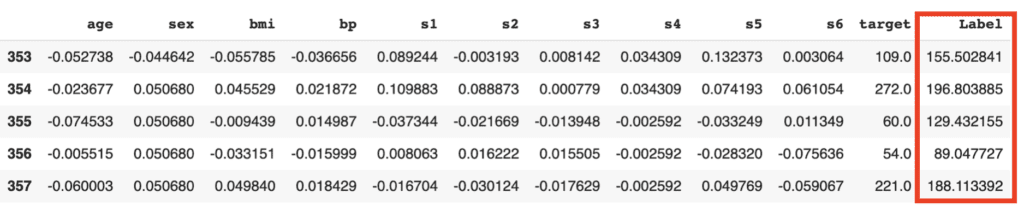
Let’s predict the test data by the above model. We can do it easily with just one sentence.
The added column, “Label”, is the predicted values. Besides, we can confirm the famous metric, such as $R^2$.
from pycaret.utils import check_metric
check_metric(predictions["target"], predictions["Label"], 'R2')

>>  0.535
Visualization
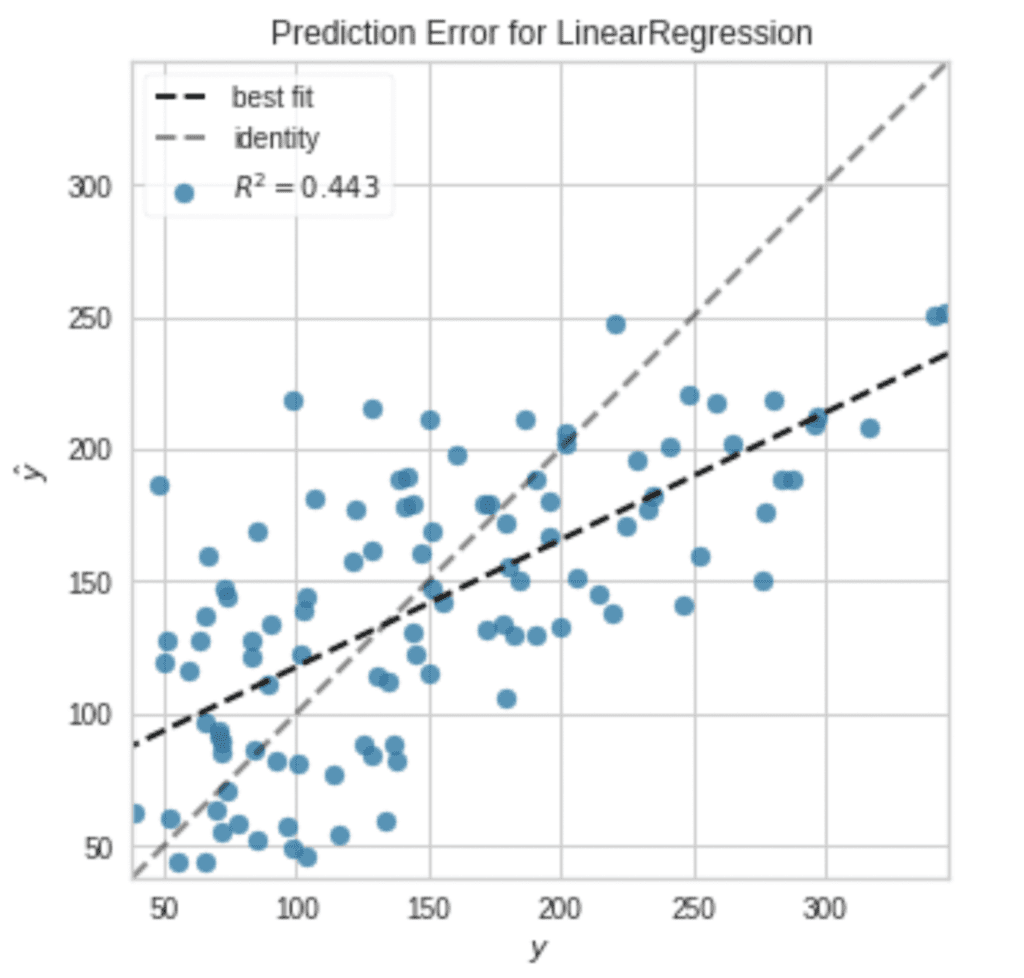
It is also easy to visualize the results.
plot_model(tuned_model, plot = 'error')
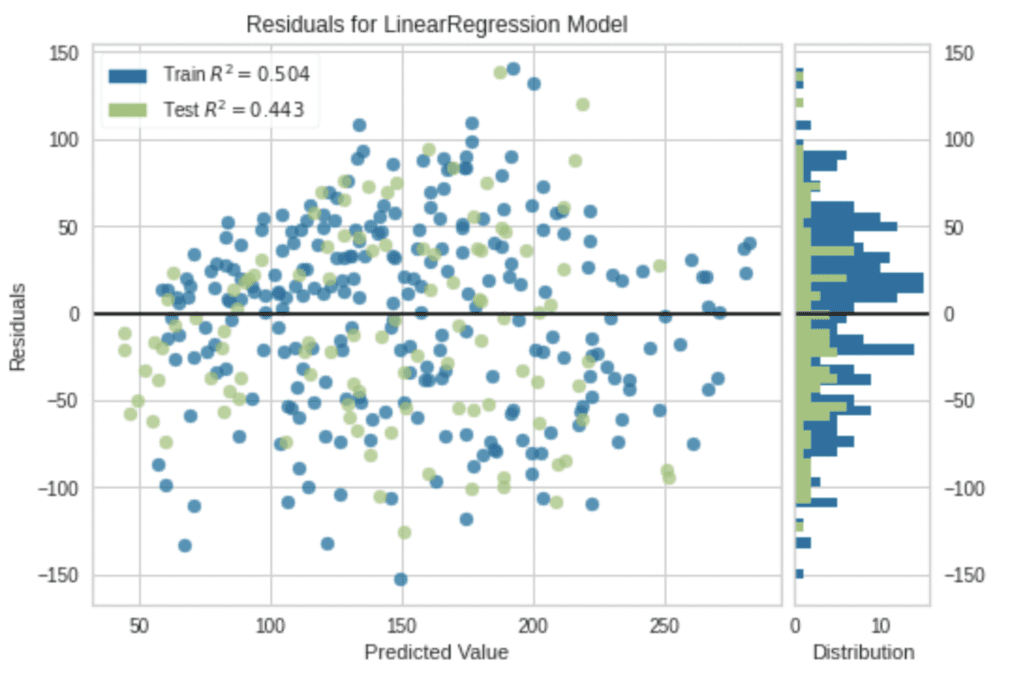
Note that, without an argument, a residual plot will be visualized.
plot_model(tuned_model)
Summary
We have seen the tutorial of PyCaret from the regression problem. PyCaret is so useful to perform the first analysis against the unknown dataset.
In data science, it is important to try various approaches and to repeat small trials quickly. Therefore, there might be worth using PyCaret to do such thing more efficiently.
The author hopes this blog helps readers a little.
The following contents were already introduced in the previous posts, Part 1 and 2.
variables
comment
arithmetic operations
boolean
comparison operator
list
dictionary
if statement
for loop
function
In this Part 3, we will learn the following contents.
object
class
instance
Note) The sample code in this post is supposed to run on Jupyter Notebook.
object
Python is an object-oriented programming language. An object-oriented style makes it possible to write a more readable and flexible code. Therefore, to understand the concept of an object is highly important.
However, as we have seen in Part 1 and 2, an object-oriented style doesn’t appear. But, it is just Python has hidden object orientation. But from here on, let’s take advantage of object-orientation and take it one step further. This will make your code more functional and maintainable.
Everything that Python deals with is an object. For example, variables, list, function, ..etc. An object is often likened to a thing. In Python, we call a concrete object an instance. The concept of an instance is unfamiliar to beginners. However, please note that it is needed especially when creating a machine learning model.
Example to understand object
Let’s imagine an object with some examples.
First, how about the variable $x$, whose value is $1$.
x = 1
x

>>  1
You may be thinking that $x$ is a variable with the value of $1$. Or, $x$ equals $1$. However, recall the following fact.
type(x)

>>  int
Actually, the variable $x$ has a value of $1$ and the information of data type of “int“. We don’t usually think about the above. However, $x$ is a variable object that has value and data-type information.
We’re not aware of it because we just gave $x$ a value of $1$. But, in behind, Python also gives variable attribute information.
Next, let’s see another example of list.
a = [1, 2, 3]
type(a)

>>  list
The list $a$ has the values of [1, 2, 3] and the information of list. Here, please recall that we can add new element by the append() method.
a.append(10)
a

>>  [1, 2, 3, 10]
When be aware of object, the list object $a$ has the method append() and we called it by $a$.append(). In other words, the append() method was originally included in the list object $a$. The list object has values, information of data type, and functions.
Short summary of object
Could you have imagined an object from the above example? An object is a thing including values, information, and functions. Note that variables, lists, functions, etc. are objects that Python has as standard. We were unknowingly calling and using it.
From here, you will create your own objects with a next topic called “class”. Especially, when creating a machine learning model, we need to create our original object by class(). This is due to designing machine learning models by giving the objects model structure, training, and predictive functions.
class
Here, let’s create our own object by class. The sample code is below. We define a class by “class (class name)”. In the following, we created the class “MyClass()”. And, “__init__()” is for initializing an argument $x$ when we create an instance from the class. Although it is unfamiliar to beginners, a function in class must receive the own argument “self”, which is just an object itself. Then, each function in the class also receives “self”, making it possible to use the variables(self.x) and the functions(func1, func2, func3).
Here, the “__call__()” method is introduced. This method is called without the form of “.method()”. Let’s take the following example. The shaded area is where “__call__()” was added.
Then, create an instance from the class “MyClass_updated()” and call the instance. The point is that the “__call__()” is called at “instance()”.
x = 5
instance = MyClass_updated(x)
instance()  # __call__() is called

>>  25
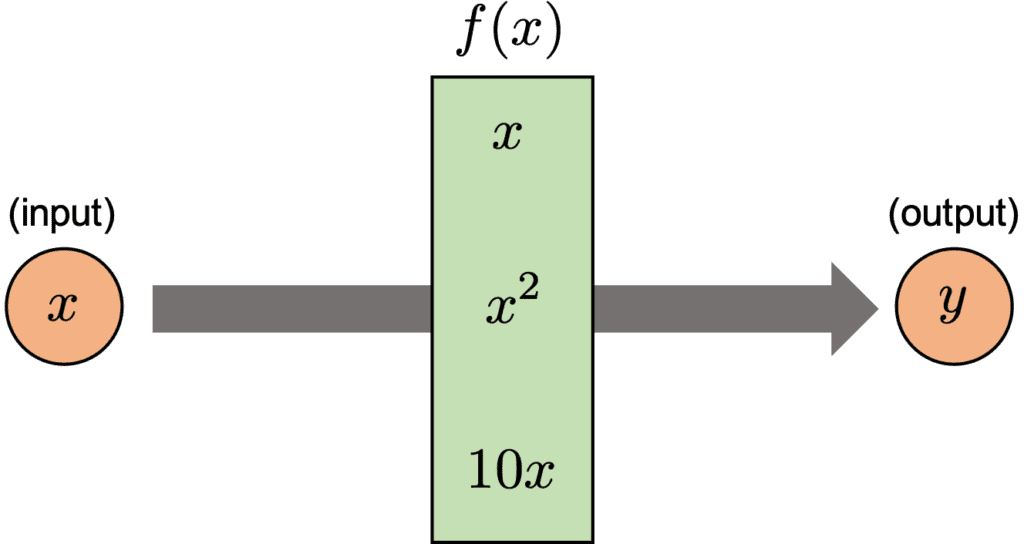
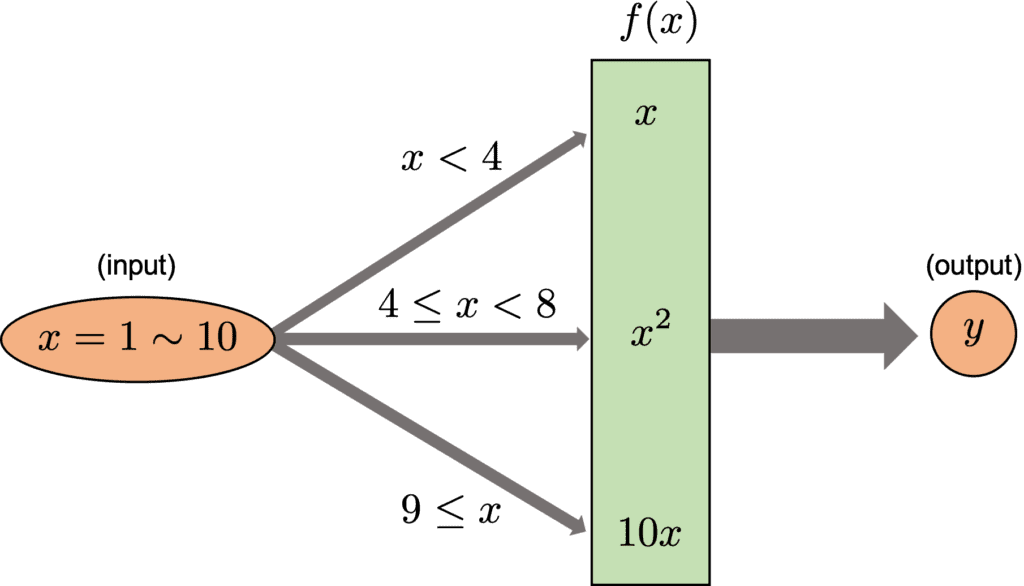
At this point, we can convert $x$, which will vary from $1$ to $10$ in order, with the function $f(x)$. Note that $f(x)$ changes dependent on the range of $x$, whose conditional branching is shown in the figure below.
for x in range(1, 11):
  instance = MyClass_updated(x)
  print( instance() )  # __call__() is called

>>  1
>>  2
>>  3
>>  16
>>  25
>>  36
>>  49
>>  80
>>  90
>>  100
Summary
We have seen an object, class, and instance in Python. These topic may be unfamiliar to beginners. However, these are important especially for a data scientist. The basics of Python are covered in the series of posts of Part 1 – 3.
The next step is to learn the external Python library, such as NumPy, Pandas, and scikit-learn, for data science and machine learning. By calling these libraries from Python, you can take advantage of various functions. For example, NumPy makes it easier to perform numerical calculations. Pandas is useful for the treatment of table data. And, we can create a machine-learning model with low-codes by using scikit-learn.
Note that what you call from an external library is just a class someone created. You have already basic knowledge. And you can also create your own external library.
The author hopes this blog helps readers a little.